Photoroom for Shopify: From Product Photo to Live Listing with AI
 By Jack Dash
 Software
A single Shopify product can create a surprisingly long production chain. Before the listing goes live, the image may need background cleanup, extra angles, consistent sizing, filenames and alt text, while the product page still needs a title, description, variants, and final store settings.
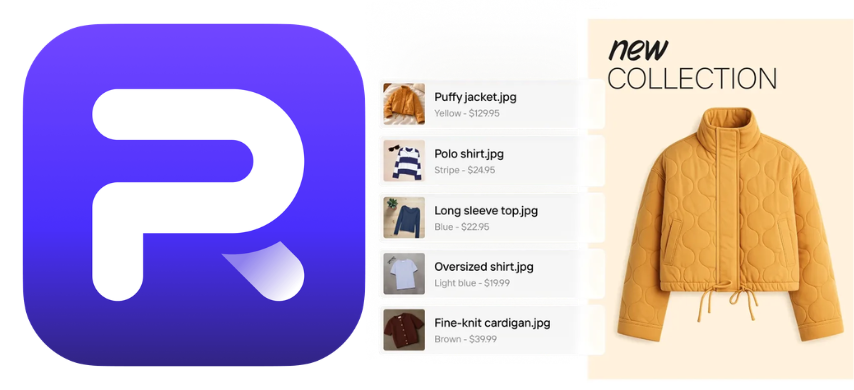
Photoroom pulls several of those tasks into one workflow. Its Shopify integration connects product-image editing, AI-generated visuals, and catalog publishing, so merchants can work on listing assets without constantly moving files between tools. Merchants can update existing Shopify products from Photoroom and prepare new products with images and listing content before sending them to Shopify as drafts for final setup.
What Is Photoroom for Shopify?
Building a Shopify catalog can turn into a production job fast. One product needs a clean hero image, alternate views, consistent spacing, the right dimensions, and visuals that match the rest of the store. Photoroom brings those editing tasks into one connected workflow, so merchants can work on Shopify product imagery without bouncing between separate apps and folders.
Once Shopify is connected, product images can move into Photoroom for cleanup, AI editing, resizing, scene generation, and other catalog work. You can then publish existing product imagery back to Shopify, while preparing new products with images and listing content before sending them to Shopify as drafts for final review.
Built for More Than One Product at a Time
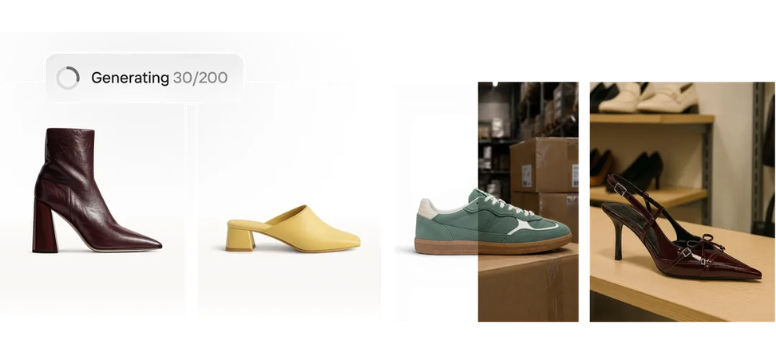
Photoroom also supports larger catalog workflows. Its Batch tools can apply the same visual treatment across groups of images, while API and enterprise options extend that process to higher-volume operations.
Teams can work with tools such as:
-
Brand Kit: Apply approved backgrounds, padding, colors, logos, and output formats across repeated jobs.
-
Batch Editing: Process groups of product images with the same setup instead of repeating edits one by one.
-
API Workflows: Connect Photoroom with existing ecommerce, PIM, DAM, or internal systems.
-
Custom AI Models: Enterprise teams can train models around specific products and visual rules.
-
Usage Dashboards: Monitor credit use across users, API keys, and features.
-
Enterprise Guarantee: Eligible enterprise customers can define fidelity criteria, with failed outputs regenerated or credited under the agreed terms.
The interesting part is how these pieces connect. A small Shopify store can start with direct catalog editing, while larger teams can extend the same image workflow across thousands of assets and multiple sales channels.
Try Photoroom with a Shopify catalog and see how far one product image can go across cleanup, styling, resizing, and final listing preparation.
Start With a Clean Product Image
Background Remover: Start With a Cleaner Product Image
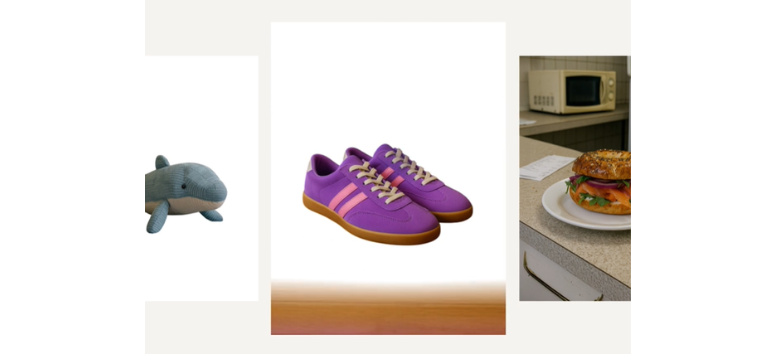
A distracting background can make even a strong product photo look unfinished. Photoroom’s Background Remover automatically isolates the main subject, clears away the surroundings, and gives you a cleaner base for staging, resizing, or adding a new backdrop.
-
Upload Easily: Add a JPEG or PNG product image in any size.
-
Remove Automatically: Let AI separate the product from its original background.
-
Choose the Finish: Keep the background transparent, switch to white, or add a custom color.
-
Edit Further: Use the clean cutout as a starting point for other Photoroom tools.
-
Export Flexibly: Download as PNG, JPEG, or WEBP, or save it for later edits.
White Background: Create a Clean, Marketplace-Ready Product Shot
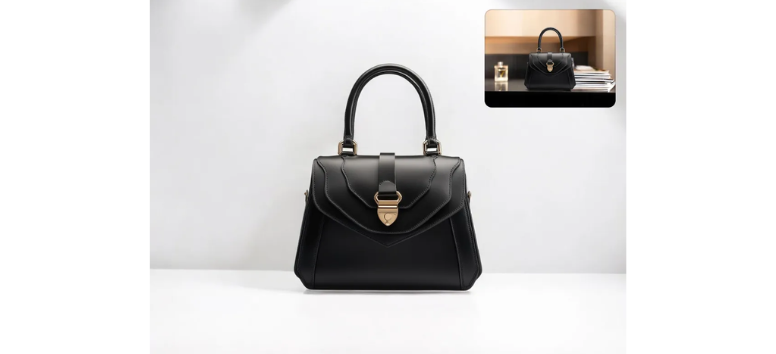
A white background keeps attention on the product and removes visual clutter from the frame. Photoroom’s White Background tool uses AI to replace the original setting with a clean white backdrop, creating a familiar catalog-style image for Shopify and other ecommerce channels.
-
Clean Product Focus: Keep color, texture, shape, and other product details easy to see.
-
Consistent Catalog Style: Standardize product imagery across multiple listings.
-
Marketplace-Friendly Format: Prepare main images that align with common ecommerce presentation standards.
-
Useful Editing Base: Add shadows, test background colors, or create campaign variations from the same source image.
-
No Studio Required: Turn everyday product photography into a cleaner ecommerce visual with a few clicks.
Transparent Background: Turn One Product Photo Into a Reusable Asset

Create a flexible product asset by removing the original background and isolating the item cleanly. Photoroom’s Transparent Background tool lets the same product image move across Shopify, ads, email, banners, and marketplace graphics without another photo shoot.
-
Reuse Across Channels: Place one clean cutout into ecommerce, marketing, and design layouts.
-
Build New Compositions: Add brand colors, lifestyle scenes, comparison graphics, or promotional backgrounds.
-
Create More Variations: Produce bundles, seasonal campaigns, and collection assets from the same source image.
-
Continue Editing: Add AI-generated backgrounds, shadows, lighting, or other adjustments from the transparent base.
-
Export for Different Uses: Prepare versatile product visuals for Shopify pages, marketplaces, social media, and email campaigns.
Remove Objects: Clean Up Product Photos With AI
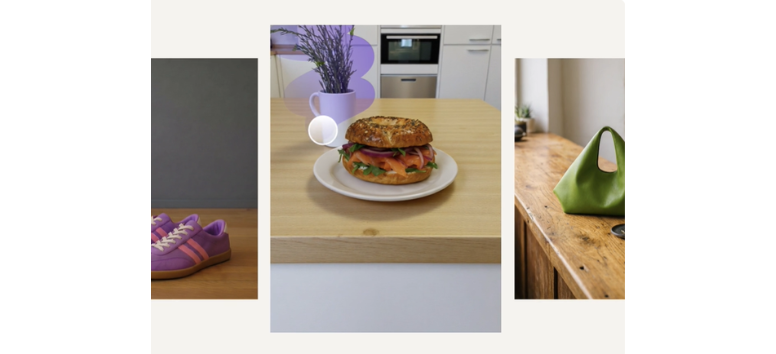
Erase unwanted people, props, marks, or background clutter without rebuilding the whole image. Photoroom’s Remove Objects tool lets you brush over the area you want gone, then uses AI to reconstruct the surrounding background for a cleaner product photo.
-
Remove Distractions: Clear unwanted objects that compete with the main product.
-
Retouch With a Swipe: Mark the area to erase instead of editing pixel by pixel.
-
Preserve the Scene: Let AI fill the cleared space using nearby image details.
-
Work Across Categories: Edit apparel, furniture, beauty, food, and other product photography.
-
Continue the Workflow: Add new backgrounds, resize images, or move into other Photoroom editing tools after cleanup.
Improve the Product Before Building the Scene
Product Beautifier: Give Product Photos a Studio-Ready Finish
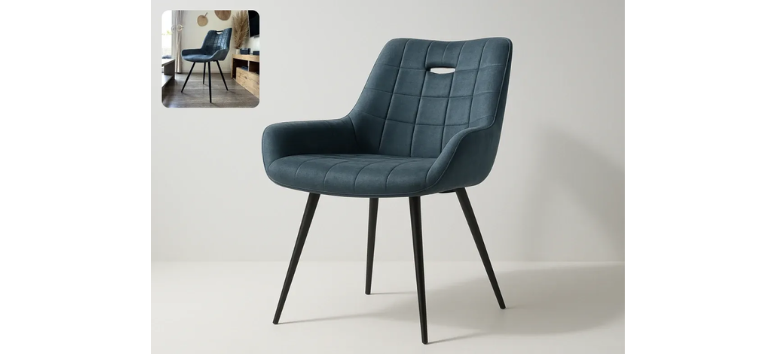
Enhance everyday product photos with sharper details, improved lighting, and more balanced color in a single AI-assisted edit. Photoroom’s Product Beautifier, powered by GPT-Image-1, automatically refines the image so it looks cleaner and more polished for Shopify listings, campaigns, and social content.
-
Improve Lighting: Adjust brightness and overall presentation automatically.
-
Sharpen Details: Bring more definition to product edges, textures, and features.
-
Refine Color: Boost and balance colors for a more polished result.
-
Correct Presentation: Fine-tune angles and visual clarity without manual retouching.
-
Create Consistency: Apply a cleaner, more uniform look across product imagery without booking a traditional studio shoot.
AI Shadows: Add Depth to Flat Product Photos
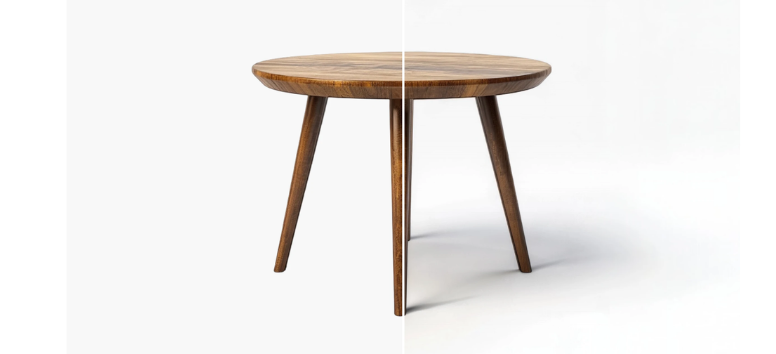
Ground product photos with realistic shadows that make items look more natural in the frame. Photoroom’s AI Shadows tool adds depth around isolated products and lets you fine-tune the result to match the scene, lighting, and background.
-
Add Natural Depth: Create shadows that keep products from looking like they are floating.
-
Define Shape and Texture: Use shadow detail to show curves, edges, and surface features more clearly.
-
Adjust the Look: Fine-tune intensity, blur, length, color, and position.
-
Keep Catalogs Consistent: Apply similar shadow treatments across related product images.
-
Continue Editing: Pair shadows with generated backgrounds or Product Staging for a more complete scene.
Unwrinkle Clothes: Smooth Garments Without Reshooting
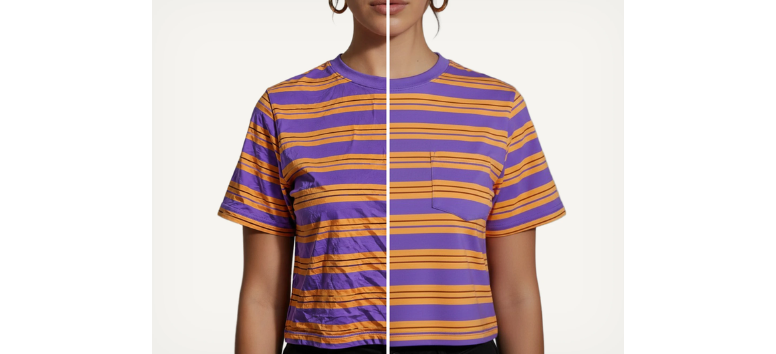
Remove visible wrinkles and creases from clothing photos with AI while keeping the garment’s shape, texture, seams, and natural shading intact. Photoroom’s Unwrinkle Clothes tool helps fashion sellers clean up product images without ironing, steaming, or starting the shoot again.
-
Smooth Wrinkles Fast: Reduce distracting creases directly in the image.
-
Preserve Fabric Detail: Keep texture, folds, seams, and structure looking natural.
-
Skip Extra Prep: Fix wrinkles after the photo is taken instead of pausing for another shoot.
-
Create Consistent Apparel Images: Standardize garment presentation across product pages, marketplaces, ads, and social posts.
-
Pair With Fashion Tools: Continue with Recolor, Flat Lay, Ghost Mannequin, or AI Fashion Models for additional product variations.
Create Product Scenes Without Building a Physical Set
Product Staging: Place Products in Real-World Scenes With AI
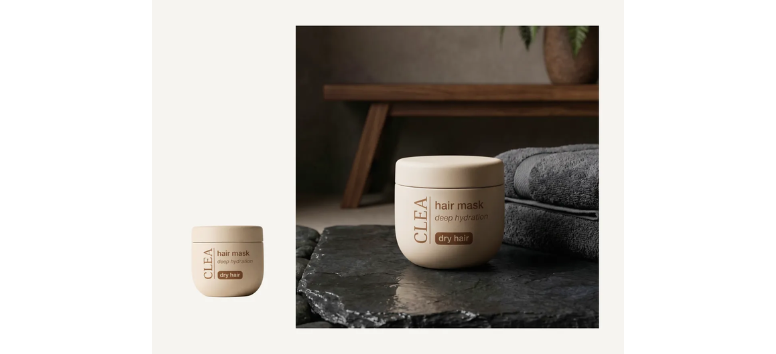
Show products in context by placing them into realistic lifestyle scenes without arranging a physical photo shoot. Photoroom’s Product Staging tool takes a standard product image and generates visuals that show the item being held, worn, or placed naturally in a setting, which works especially well for accessories, jewelry, bags, shoes, and other hard goods.
-
Add Real-World Context: Place products in everyday scenes that show how they are used.
-
Create Lifestyle Imagery: Generate visuals of items being held, worn, or displayed naturally.
-
Skip Traditional Staging: Build scene-based product images without props, sets, or reshoots.
-
Support Multiple Channels: Prepare visuals for Shopify listings, ads, and social content.
-
Keep the Workflow Moving: Start from one product photo and create additional listing-ready images quickly.
Background Generator: Create Custom Product Scenes With AI
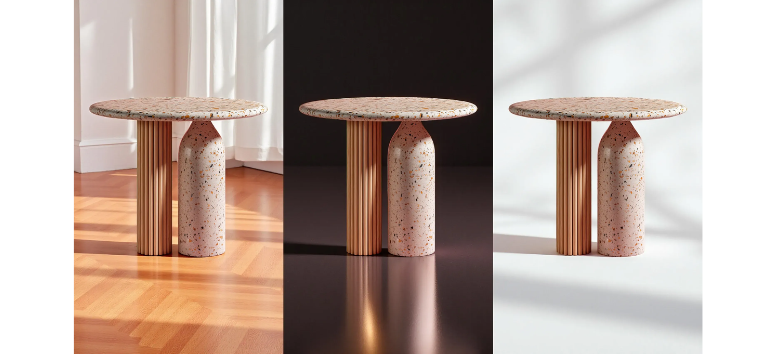
Generate polished backgrounds that place products into studio or lifestyle settings without building a physical set. Photoroom’s Background Generator uses AI to create backdrops that adapt to the product’s angle, lighting, and shadows, giving each image a more natural finished look.
-
Create Custom Scenes: Enter prompts or choose preset styles for different visual directions.
-
Match Product Context: Generate backgrounds suited to apparel, furniture, beauty, food, and other categories.
-
Maintain Visual Consistency: Apply similar backgrounds across larger product catalogs.
-
Scale Production: Use Batch or API workflows for higher image volumes.
-
Test Different Looks: Produce alternate backgrounds for Shopify pages, marketplaces, ads, and social campaigns.
Blur Background: Keep the Product in Focus

Blur distracting surroundings while keeping the main product sharp and clearly defined. Photoroom’s Blur Background tool uses AI to identify the subject first, then softens the background to create more depth without requiring a special camera setup.
-
Focus Attention: Reduce background clutter so the product stands out more clearly.
-
Add Depth: Create a shallow depth-of-field effect around the subject.
-
Detect Subjects Automatically: Let AI separate the foreground from the background before applying blur.
-
Edit at Scale: Use Batch or API options for larger sets of product images.
-
Continue Refining: Remove, replace, brighten, or further edit the background after applying the blur.
Build Fashion Product Images With AI
AI Fashion Models: Show Products on Virtual Models
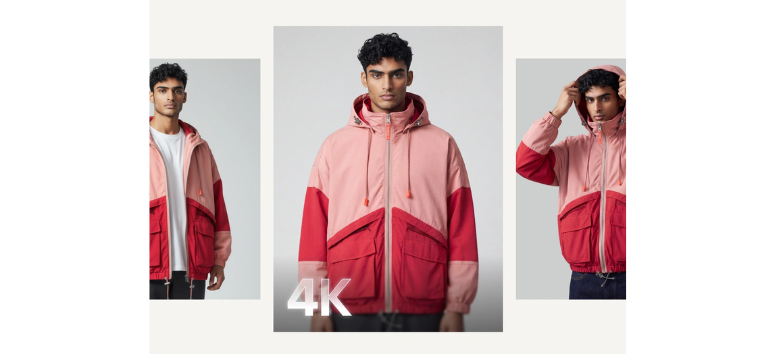
Showcase clothing, jewelry, eyewear, and other fashion products on lifelike AI-generated models without organizing a traditional photo shoot. Photoroom’s AI Fashion Models can turn existing product images into on-model visuals while giving sellers more control over model selection and presentation.
-
Create On-Model Images: Display products on realistic virtual models from uploaded product photos.
-
Represent Different Shoppers: Choose across genders, ages, ethnicities, and body types.
-
Reuse Custom Models: Save selected models in Brand Kit for future collections.
-
Generate High-Resolution Visuals: Create images in 2K or 4K resolution.
-
Scale Fashion Catalogs: Pair with Batch, Flat Lay, Ghost Mannequin, or Recolor for larger Shopify collections.
Ghost Mannequin: Give Clothing a Natural 3D Shape
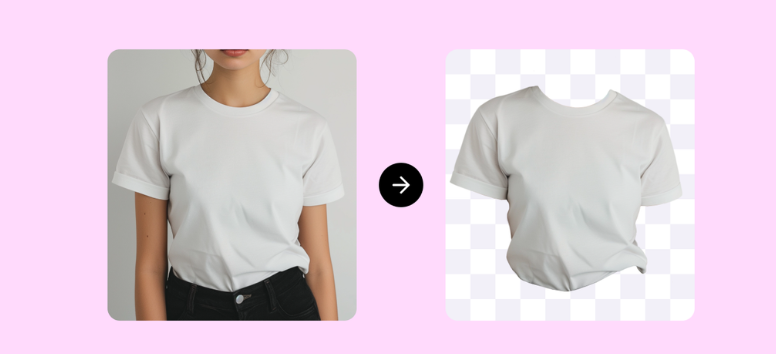
Transform flat lays, hanging garments, mannequin shots, or model photos into clean ghost mannequin images with AI. Photoroom reconstructs hidden garment areas and presents clothing in a more natural, body-like shape without leaving a visible model or mannequin in the frame.
-
Create 3D-Looking Apparel Images: Show fit, sleeves, necklines, and proportions more clearly.
-
Rebuild Hidden Areas: Use AI to reconstruct parts of the garment covered in the original photo.
-
Work From Different Sources: Start with flat lays, hangers, mannequins, or model images.
-
Standardize Catalogs: Keep angles, proportions, and presentation more consistent across collections.
-
Scale Further: Refine backgrounds, shadows, and exposure with Batch or API workflows.
Flat Lay: Create Clean Top-Down Product Photos
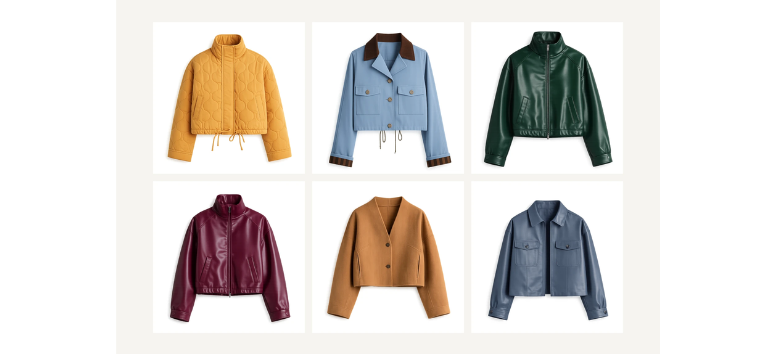
Create polished flat lay images from existing clothing photos without setting up a studio or manually arranging every garment. Photoroom’s Flat Lay tool uses AI to generate structured, top-down views that highlight shape, texture, and product details for Shopify listings and other ecommerce channels.
-
Generate Top-Down Views: Turn product photos into clean flat lay compositions.
-
Highlight Product Details: Show fabric, structure, texture, and overall shape clearly.
-
Skip Manual Setup: Avoid repeated garment positioning, lighting adjustments, and reshoots.
-
Keep Catalogs Consistent: Standardize framing and presentation across clothing and accessory listings.
-
Expand Variations: Pair Flat Lay with Recolor, Ghost Mannequin, or AI Fashion Models for additional product views.
Recolor Clothing: Create New Colorways From One Product Photo
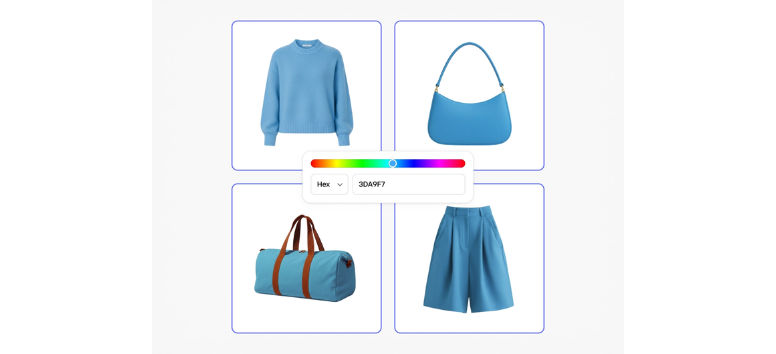
Recolor clothing and other products with AI without arranging a new photo shoot for every variation. Photoroom’s Recolor tool lets you upload an image, describe the item and target color, then generate alternate versions while preserving details such as fabric texture, stitching, folds, and natural shading.
-
Create Color Variants: Turn one product image into multiple colorways.
-
Preserve Fabric Detail: Keep texture, seams, folds, and lighting visible after recoloring.
-
Test New Shades: Preview seasonal colors or potential variants before producing new assets.
-
Reuse Across Channels: Prepare recolored visuals for Shopify pages, ads, marketplaces, and social content.
-
Pair With Other Tools: Combine Recolor with Ghost Mannequin, Flat Lay, AI Fashion Models, or AI Shadows for a fuller apparel workflow.
Edit Product Photos With Natural-Language AI
Edit With AI: Make Product Changes With Simple Prompts
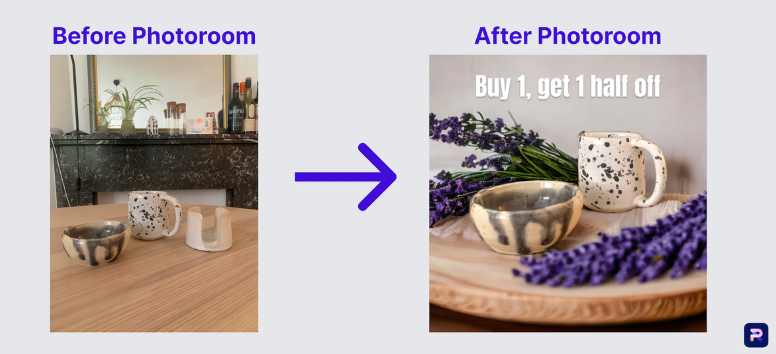
Describe the edit you want and let Photoroom update the product image without manual masking or retouching. Edit With AI uses natural-language instructions to handle changes such as removing objects, adjusting colors, or replacing backgrounds while keeping the product as consistent as possible.
-
Use Plain-Language Prompts: Type requests like “remove the label” or “add a white studio background.”
-
Skip Complex Editing Tools: Avoid manual selections, layers, and detailed retouching.
-
Change Multiple Elements: Adjust objects, colors, backgrounds, and other visual details.
-
Reuse Existing Photos: Create new product variations without organizing another shoot.
-
Scale the Workflow: Apply broader editing processes through Batch or API tools for larger catalogs.
Turn Static Product Images Into Video
Product Video Generator: Turn Product Photos Into Motion

Transform a static product image into a short AI-generated video without setting up another shoot. Photoroom’s Product Video Generator offers 300+ ecommerce templates, text prompts, or a combination of the two to create motion that highlights details such as shape, texture, shine, and movement.
-
Choose From 300+ Templates: Start with preset ecommerce video styles for more predictable results.
-
Guide With Prompts: Describe the movement or presentation you want.
-
Combine Both Methods: Use a template and prompt together for added control.
-
Stay in One Workflow: Edit the photo, remove backgrounds, and generate video without switching platforms.
-
Publish Across Channels: Create motion assets for Shopify, product pages, marketplaces, ads, and social media.
Prepare Product Images for Shopify
Resize Image: Adapt One Product Photo to Multiple Formats
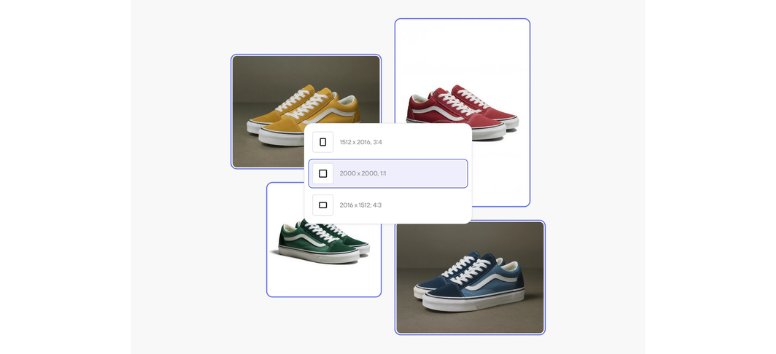
Resize one product image for different layouts without cutting off important details. Photoroom’s AI Image Resizer adjusts the surrounding space so the product stays visible and properly framed, even when moving from landscape to portrait or other dimensions.
-
Create Multiple Sizes: Turn one source image into versions for different channel requirements.
-
Avoid Awkward Crops: Keep the full product visible while changing dimensions.
-
Expand With AI: Use outpainting to extend the background when extra space is needed.
-
Preserve Composition: Maintain natural framing instead of stretching the image.
-
Scale Larger Catalogs: Apply resize settings in Batch or connect through the API for higher-volume workflows.
How Photoroom Connects the Workflow to Shopify
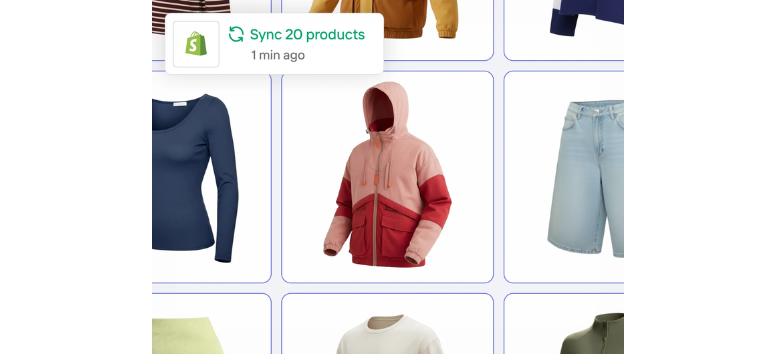
Connect your Shopify store to Photoroom and the platform automatically creates a dedicated Shopify Products catalog for your Space. Existing Shopify product images import into that catalog, so you can start editing them without downloading each file and uploading it to another tool first.
From there, you can:
-
Import Shopify Product Images: Access imagery from your connected Shopify listings inside the Photoroom product catalog.
-
Edit Existing Images: Adjust current product photos using Photoroom’s editing and AI tools.
-
Add New Images: Upload new photos, use saved assets, or add images created elsewhere in Photoroom.
-
Generate AI Visuals: Create new listing images with tools such as Product Staging, AI Fashion Models, Ghost Mannequin, Flat Lay, Recolor, and other supported AI features.
-
Review Your Changes: Check edited and generated images before updating the store.
-
Publish Back to Shopify: Send product-image updates directly to the corresponding Shopify listings when they are ready.
For new products, Photoroom can also create the listing, add or generate product images, and produce titles, descriptions, filenames, and alt text. The listing is then sent to Shopify as a draft, where you can complete pricing, stock, and other store details before it goes live.
Turn product photography into a more connected Shopify workflow with Photoroom. Its AI tools cover everything from background cleanup and product staging to fashion visuals, recoloring, video generation, and resizing, giving merchants more ways to prepare consistent product assets without relying on separate editing platforms.
The Shopify integration then connects those finished visuals back to the catalog, while new products can be prepared in Photoroom and sent to Shopify as drafts for final pricing, inventory, and publishing. Try Photoroom with your Shopify store and see how much of your product-listing workflow you can simplify in one place.