OBSBOT Camera Review and Comparison 2026: Best Models for Creators, Streaming and Video Calls
 By Rachel Jerris
 Electronics
A standard webcam works well when you sit at a desk and speak directly to the screen. Creators, presenters and streamers often need something more flexible. They may walk during a presentation, demonstrate products, record vertical content or run a broadcast with several camera angles.
OBSBOT covers these tasks with AI-powered webcams and streaming cameras. Its current range includes compact fixed webcams, motorized PTZ models and advanced cameras built for live production.
Which one suits your setup? This OBSBOT camera review compares image quality, AI tracking, framing, setup and compatibility. It also explains the type of user each model fits best.
OBSBOT Cameras Compared
|
OBSBOT camera
|
Maximum resolution
|
Tracking or framing
|
Best for
|
|---|---|---|---|
|
4K at 30fps; 1080p at 120fps
|
Motorized PTZ with AI Tracking 2.0
|
Creators, instructors and premium desktop setups
| |
|
4K at 30fps; 1080p at 120fps
|
Motorized PTZ with AI Tracking 2.0
|
Streamers seeking a lower-cost 4K PTZ webcam
| |
|
1080p at 100fps; 720p at 120fps
|
Motorized PTZ with AI tracking
|
Full HD streaming and moving presenters
| |
|
4K at 30fps; 1080p at 60fps
|
AI auto-framing
|
Video calls and seated content creators
| |
|
1080p at 100fps; 720p at 150fps
|
AI auto-framing
|
Daily calls and entry-level streaming
| |
|
4K at 30fps; 1080p at 60fps
|
PTZ human, animal and object tracking
|
Wireless and multicamera streaming
| |
|
4K at 60fps; 1080p at 120fps
|
PTZR with AI Tracking 2.0
|
Events and professional live production
|
Which OBSBOT Camera Should You Choose?
Here’s the quick version:
- Best overall desktop camera: OBSBOT Tiny 3
- Best-value 4K PTZ webcam: OBSBOT Tiny 3 Lite
- Best Full HD tracking webcam: OBSBOT Tiny SE
- Best for video calls: OBSBOT Meet 2
- Best entry-level webcam: OBSBOT Meet SE
- Best compact streaming camera: OBSBOT Tail Air
- Best professional production camera: OBSBOT Tail 2
OBSBOT Tiny 3: Best Overall for Creators and Presenters
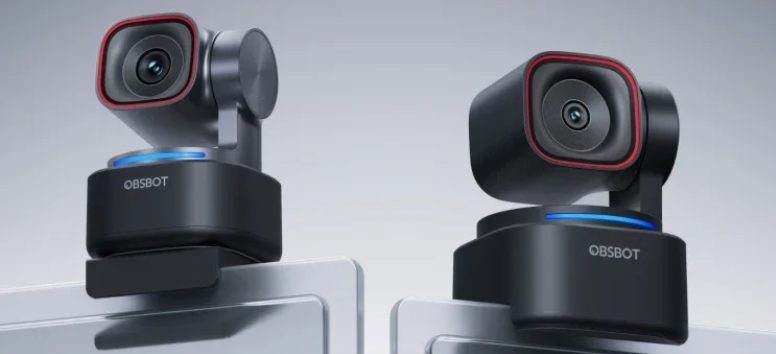
The OBSBOT Tiny 3 is the premium desktop camera in the current Tiny range. It uses a motorized gimbal that physically pans and tilts to follow someone around a room.
Its 1/1.28-inch CMOS sensor captures up to 4K at 30fps or 1080p at 120fps. An ISO range of 100 to 12800 gives it stronger low-light specifications than Tiny 3 Lite. The camera also has three built-in microphones: one omnidirectional microphone and two directional microphones.
AI Tracking 2.0 supports face framing, group tracking, composition controls and tracking zones. Users can also create non-tracking areas. This lets a presenter move around a set while stopping the camera from following them into an unwanted section.
Voice Locator can detect the person speaking and turn the camera towards them. Voice and gesture controls can also activate tracking, change the zoom or move the camera into a preset position.
Whiteboard Mode, Desk Mode and Hand Tracking add options for tutorials and demonstrations. A teacher could move between a speaking position and a whiteboard, while a product creator could switch to a close view of items on a desk.
Best for: YouTube creators, teachers, product demonstrations, online courses, podcasts and livestreams where the presenter moves.
Keep in mind: Tiny 3 is more advanced than most remote workers need. A fixed Meet-series model is simpler for normal calls.
OBSBOT Tiny 3 Lite: Best-Value 4K PTZ Webcam
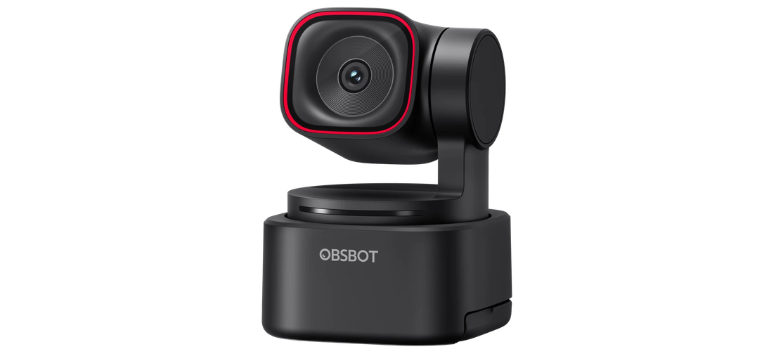
The OBSBOT Tiny 3 Lite keeps many of the core features found in Tiny 3. It records at up to 4K at 30fps or 1080p at 120fps and includes AI Tracking 2.0, Voice Tracking and a three-microphone system.
The main difference is its 1/2-inch CMOS sensor, which is smaller than the 1/1.28-inch sensor used by Tiny 3. Its ISO range reaches 6400 instead of 12800. This makes Tiny 3 the stronger specification choice for difficult lighting, but Tiny 3 Lite remains suitable for a controlled desk or studio.
The motorized gimbal can follow a streamer who stands, turns or moves between different parts of the room. That physical movement separates it from fixed webcams that rely on digital cropping.
It is a sensible middle ground for users who want 4K recording and PTZ tracking but don’t need every shooting mode included with Tiny 3.
Best for: Game streaming, desk-based content, online teaching and home studios with controlled lighting.
Keep in mind: It has a smaller sensor and fewer advanced shooting options than the standard Tiny 3.
OBSBOT Tiny SE: Best Full HD Camera for Moving Presenters
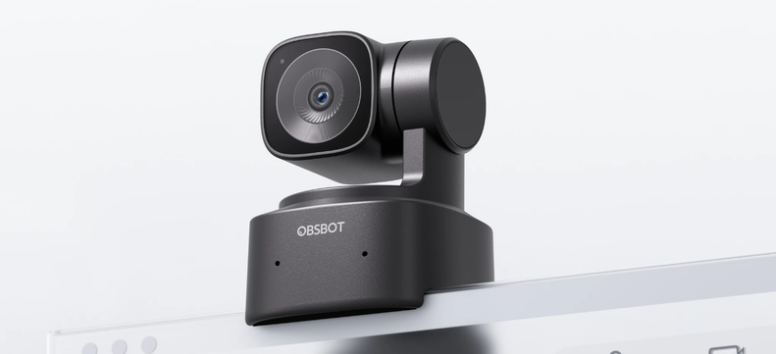
The OBSBOT Tiny SE is designed for users who want motorized tracking without paying for 4K capture.
It records at up to 1080p at 100fps or 720p at 120fps. Its high-frame-rate modes can produce smoother movement during gaming, demonstrations and active presentations. AI tracking with auto zoom adjusts the framing as the subject changes position.
Tiny SE makes sense when the target platform normally shows video at 1080p or below. Many calling and streaming platforms reduce incoming video resolution, so a 4K webcam may not always produce a 4K result for viewers.
The PTZ system remains the main selling point. A fitness instructor, lecturer or live seller can move beyond a chair without manually repositioning the webcam.
Best for: Full HD livestreams, gaming, fitness instruction, presentations and creators who move during recording.
Keep in mind: The lack of 4K provides less freedom to crop or reframe footage during editing.
OBSBOT Meet 2: Best for Video Calls and Seated Creators
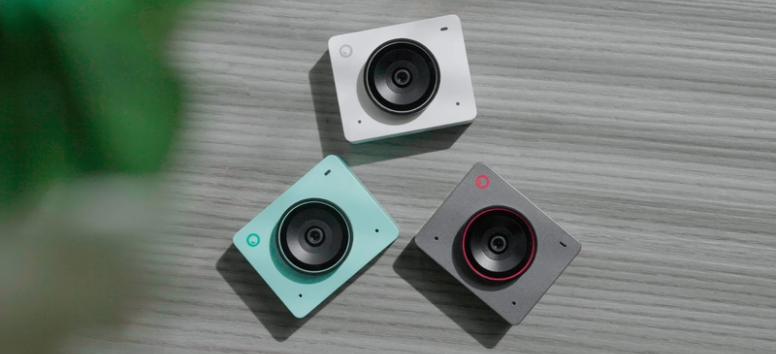
The OBSBOT Meet 2 is a compact fixed webcam. Instead of physically turning on a gimbal, it uses AI auto-framing to position one person or a group within the image.
Meet 2 records at up to 4K at 30fps or 1080p at 60fps. Its hardware includes a 1/2-inch CMOS sensor, f/1.8 aperture, phase-detection autofocus and 4x digital zoom. Two omnidirectional microphones are built in for calls and recordings.
AI auto-framing includes group, upper-body, close-up and full-body options. Gesture control can activate framing and adjust the digital zoom without opening the desktop software.
The camera supports landscape, portrait and upside-down shooting. Portrait mode suits social media clips, while landscape mode covers meetings, webinars and standard video content.
Setup is simple. Connect it through USB, choose it as the camera in the required program and start the call. OBSBOT Center provides access to framing controls, image settings and background tools.
OBSBOT lists Windows 10 or later and macOS 11 or later as its current system requirements.
Best for: Remote work, interviews, webinars, video calls and desk-based tutorials.
Keep in mind: Digital auto-framing cannot follow wide movement around a room as naturally as a motorized Tiny camera.
OBSBOT Meet SE: Best Entry-Level Webcam
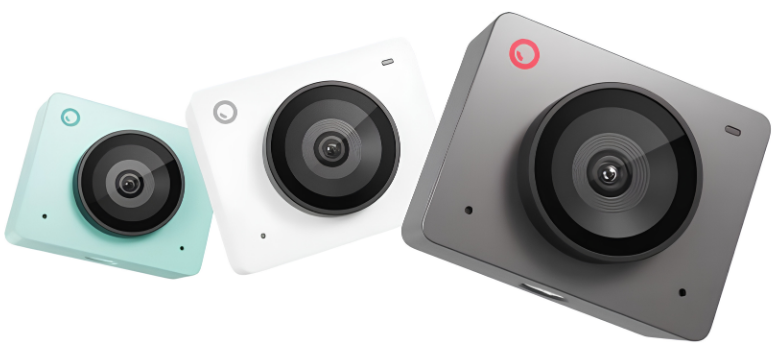
The OBSBOT Meet SE is the more accessible fixed webcam in the Meet range. It records at up to 1080p at 100fps or 720p at 150fps.
Its features include a 1/2.8-inch stacked CMOS sensor, autofocus, dual native ISO, Staggered HDR, AI auto-framing and gesture control. It also supports landscape, portrait and upside-down shooting.
At 33.2 grams, Meet SE is easy to move between a home office and a workplace. The detachable privacy cover blocks the lens when the camera isn’t in use and attaches to the base of the magnetic mount for storage.
Meet SE works with OBSBOT Center on Windows 10 or later and macOS 11 or later. It is also designed to work with major video-conferencing platforms.
Update the camera to the latest firmware before using Staggered HDR, Portrait Mode or Upside-Down Mode. OBSBOT identifies a firmware update as a requirement for these functions.
Best for: Daily meetings, online classes, portable laptop setups and first-time streamers.
Keep in mind: Full HD is enough for most calls, but creators producing 4K projects may prefer Meet 2.
OBSBOT Tail Air: Best for Solo and Multicamera Streaming
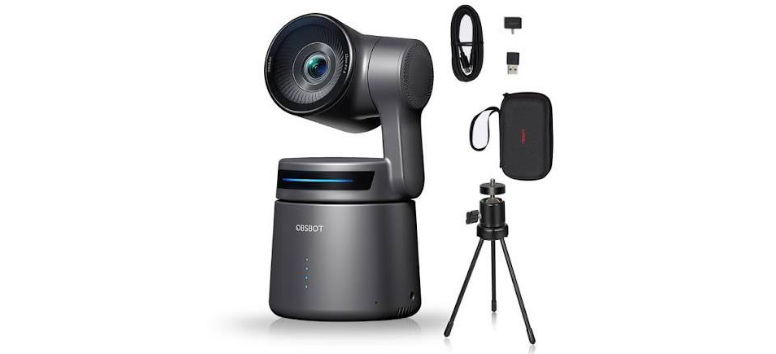
The OBSBOT Tail Air sits between a desktop webcam and a professional production camera.
It records at up to 4K at 30fps or 1080p at 60fps. Its PTZ system can track people, animals and selected objects. This wider subject support is useful for cooking demonstrations, live performances, sports practice and pet content.
Gesture Control 2.0 can start or stop recording, lock or unlock a tracking target and adjust the zoom. AI Director Grids can display several framing options that a creator can select during a stream.
Tail Air supports USB-C webcam use and Micro HDMI output. An optional USB-C-to-Ethernet adapter adds wired Ethernet and PoE connectivity. NDI can carry video, audio and control data over a compatible network.
The current official store listing features an NDI Activated package. Package options can change, so confirm that NDI activation is included in the version selected before ordering.
Tail Air takes more work to configure than a USB webcam, especially in a networked or multicamera production. Its broader connections also create far more room for expansion.
Best for: Solo productions, multicamera broadcasts, events, performances, pet content and mobile streaming.
Keep in mind: Network video, HDMI hardware and multicamera control require more setup than a standard webcam.
OBSBOT Tail 2: Best for Professional Live Production
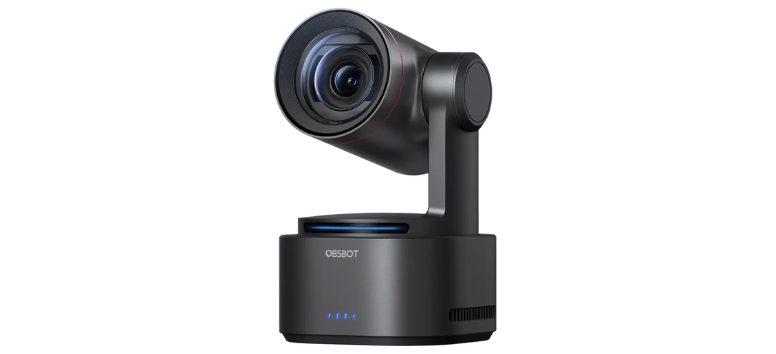
The OBSBOT Tail 2 is built for advanced live production rather than ordinary desktop calls.
It records at up to 4K at 60fps or 1080p at 120fps. Its optical system includes a 1/1.5-inch CMOS sensor, 5x optical zoom and 12x hybrid zoom.
The PTZR design adds a rotation axis to pan, tilt and zoom controls. The lens can rotate 90 degrees between landscape and portrait capture without turning the entire camera body. An automatic levelling system helps keep the frame straight.
AI Tracking 2.0 covers individuals, groups, animals and objects. OBSBOT states that the system can identify more than 30 types of animals and 200 types of objects. Composition lines, zone tracking, adjustable tracking speed and gesture controls provide more control over automated camera movement.
Its connection panel includes 3G-SDI, full-size HDMI 2.0, Ethernet with PoE+, USB 3.0, RS-232, microphone input, line input and a microSD slot.
The official store offers Standard and NDI Activated editions. NDI HX3 functionality is available with the activated edition, so buyers should check the selected version before ordering.
Best for: Conferences, houses of worship, concerts, live events, studios and professional multicamera broadcasts.
Keep in mind: Tail 2 is excessive for routine meetings or a simple single-camera desktop stream.
AI Tracking vs Auto-Framing: What’s the Difference?
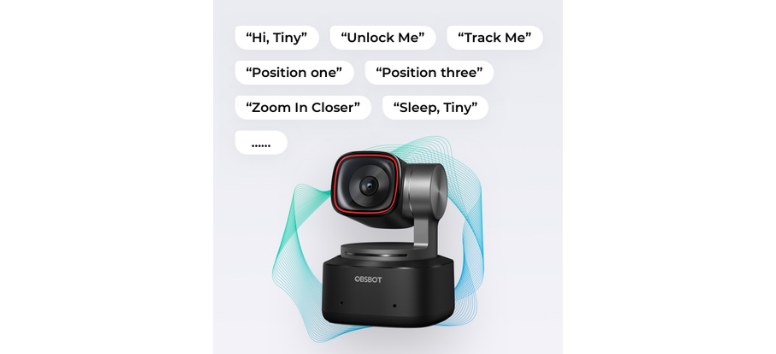
The biggest choice is between motorized tracking and digital auto-framing.
The Tiny and Tail models use motorized movement. The camera physically pans or tilts as the tracked subject changes position. This works well for teaching, demonstrations, performances and any presentation that extends beyond a chair.
The Meet models remain fixed. AI auto-framing changes the digital crop to keep a person or group properly positioned. This is usually enough for remote work, interviews and desk-based content.
The simple rule is:
- Choose Tiny or Tail for movement around a room.
- Choose Meet for a fixed desk or workstation.
- Choose Tail when the production requires HDMI, network video or several cameras.
How Easy Are OBSBOT Cameras to Set Up?
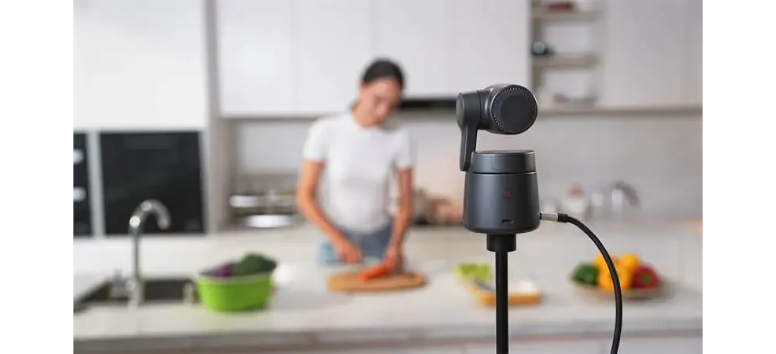
The desktop webcams follow a simple setup process:
- Connect the camera to the computer through USB.
- Select it as the video source in the calling or streaming program.
- Install OBSBOT Center to access AI and image controls.
- Choose the required tracking or framing mode.
- Test lighting, composition and audio before recording.
OBSBOT Center provides controls for exposure, white balance, tracking zones, framing and supported background tools. The available controls depend on the connected camera.
Tail Air and Tail 2 can also connect to larger production systems. HDMI, SDI, Ethernet, PoE and NDI setups may require additional equipment or network configuration.
Do OBSBOT Cameras Work With Streaming and Video-Call Platforms?
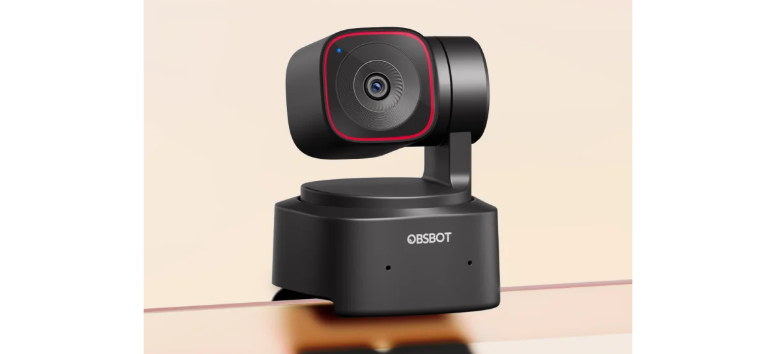
The USB models can function as camera inputs for common streaming and conferencing programs. OBSBOT also promotes compatibility with major calling and streaming platforms.
Still, platform limits matter. A 4K camera doesn’t guarantee a 4K meeting. Many conferencing services reduce resolution based on the account, internet connection, device, and meeting conditions.
For livestreaming, software such as OBS Studio can provide more control over resolution, scenes, overlays, and multiple camera sources. Creators should confirm the supported resolution and frame rate inside their chosen software before recording.
The OBSBOT Tiny 3 is the strongest all-around desktop choice for creators who want 4K recording and motorized AI tracking. Tiny 3 Lite is the more practical alternative for controlled lighting and a tighter equipment budget.
For meetings and desk-based content, the OBSBOT Meet 2 provides 4K capture and AI auto-framing without the added movement of a PTZ system. Meet SE covers the same basic role at Full HD resolution.
The OBSBOT Tail Air is a logical step into multicamera or network-based streaming. Productions that require SDI, full-size HDMI, extended zoom and advanced integration should consider the OBSBOT Tail 2.
Start with three questions: How far will the presenter move? What resolution does the final platform support? Which connections does the existing setup use? The answers should point to the right OBSBOT camera without much guesswork.