Best Screen Recording Tools
 By Jordan Midea
 Services
Screen recording has become part of how people explain, teach, and share ideas online. From quick tutorials and team training to client presentations and gaming content, showing your screen often says more than a long message ever could. It saves time, removes confusion, and keeps communication clear across different platforms. As more work and content move online, having the right tool makes a noticeable difference. TechSmith continues to stand out in this space, known for creating screen recording solutions that balance ease of use with reliable performance.
Camtasia - A Smarter Way to Record, Edit, and Share Your Screen
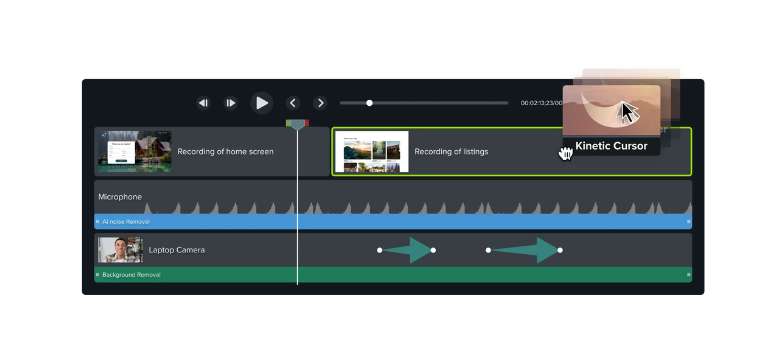
Camtasia stands out as one of the most reliable screen recording tools in 2026, especially for users who want more than basic capture. It combines recording, editing, and AI-powered enhancements in one platform, making it easier to turn ideas into polished videos without switching tools or learning complex software.
AI-Powered Avatar Videos - Turn Scripts into On-Screen Presentations 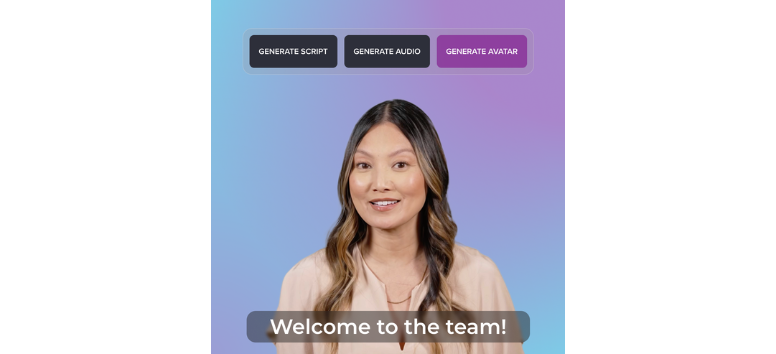
Camtasia’s AI avatar generator changes how videos are created by turning written scripts into lifelike presentations. Instead of setting up cameras or recording yourself, you can produce professional-looking videos using realistic avatars that speak and move naturally.
-
Script-to-video conversion - Transform text into talking avatars with synced voice and gestures
-
Diverse avatar options - Choose styles that match your content or audience
-
Built-in AI tools - Use text-to-speech and automatic lip-sync for smoother delivery
Create your first AI-powered video in Camtasia and bring your message to life without going on camera.
AI Script Generator - Turn Ideas into Ready-to-Record Scripts- 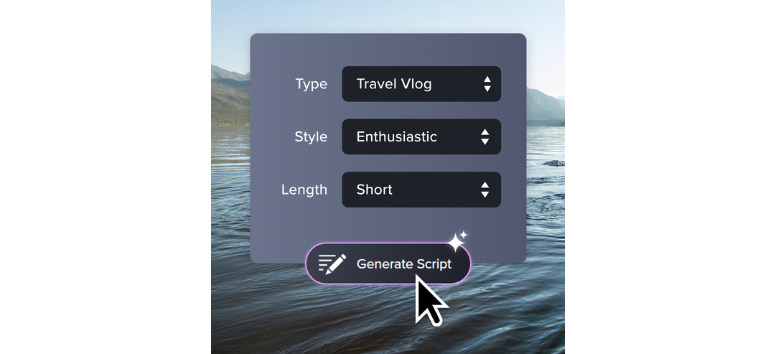
Coming up with what to say can slow down even the best video plans. Camtasia’s AI script generator removes that pause by turning rough ideas into structured scripts you can use right away. It works across formats, helping you shape content for tutorials, social clips, or full-length videos without starting from scratch.
-
Custom script creation - Generate content tailored to your topic, platform, and audience
-
Content repurposing - Adapt one idea into formats for YouTube, Reels, or ads
-
Flexible tone control - Adjust style and messaging based on your goal
Generate your next video script in Camtasia and keep your workflow moving from idea to recording.
AI Voice Generator - Studio-Quality Narration Without the Setup
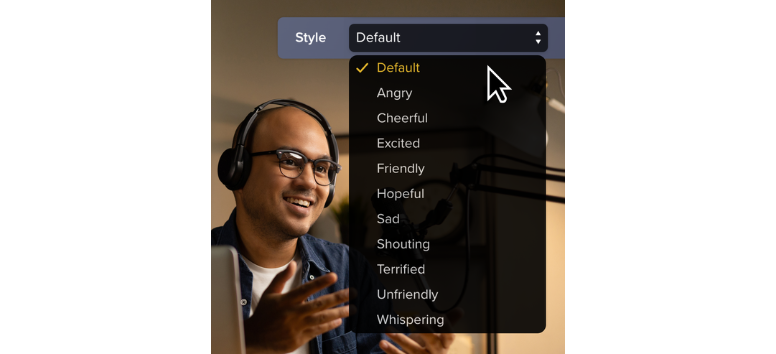
Recording voiceovers often takes more time than expected. Background noise, multiple takes, and editing delays can slow everything down. Camtasia’s AI voice generator removes that process by turning your script into clear, natural-sounding narration in minutes, so production keeps moving without extra setup.
-
No recording needed - Create voiceovers without a mic, studio, or voice talent
-
Fast script conversion - Turn long scripts into narration in one pass
-
Easy updates - Edit or change voiceovers without re-recording
Create your voiceover in Camtasia and keep your video production moving without delays.
AI Noise Removal - Clean Audio Without Extra Editing Tools 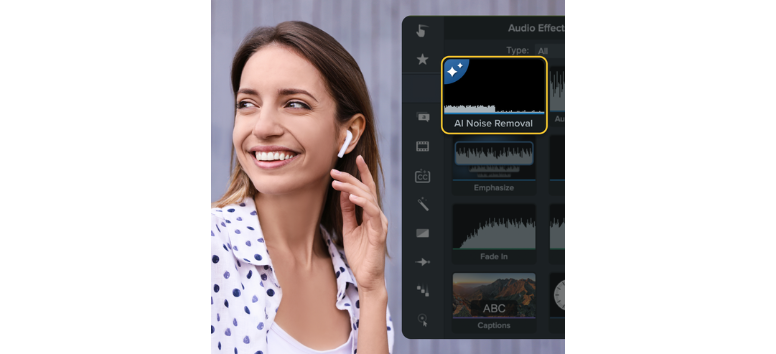
Background noise can distract from even the best content. Camtasia’s AI noise removal feature clears unwanted sounds in seconds, so your voice stays sharp and easy to follow. It works directly inside the editor, which means no switching between apps or dealing with complex audio tools.
-
Instant cleanup - Remove hums, wind, or background chatter automatically
-
Balanced audio - Adjust vocals and background sound for clarity
-
Reusable presets - Save settings for consistent audio across videos
Clean up your audio in Camtasia and keep every recording clear from start to finish.
AI Transcription - Turn Audio Into Editable Text in Seconds
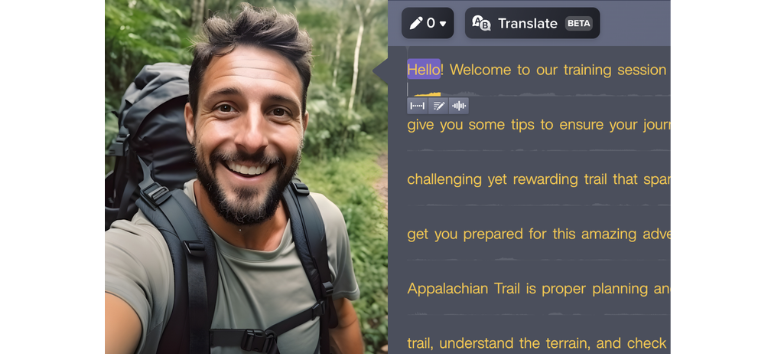
Manually transcribing audio can take longer than creating the content itself. Camtasia’s AI transcription tool converts recordings into accurate, editable text almost instantly, making it easier to add captions, review content, or repurpose material without extra effort.
-
Fast transcription - Convert audio into text directly within the timeline
-
Multiple export formats - Save transcripts as SRT, DOCX, or TXT files
-
Multilingual support - Handle content across different languages with ease
Transcribe your audio in Camtasia and make your content easier to edit, share, and reuse.
Video Background Remover - Clean Visuals Without a Studio Setup 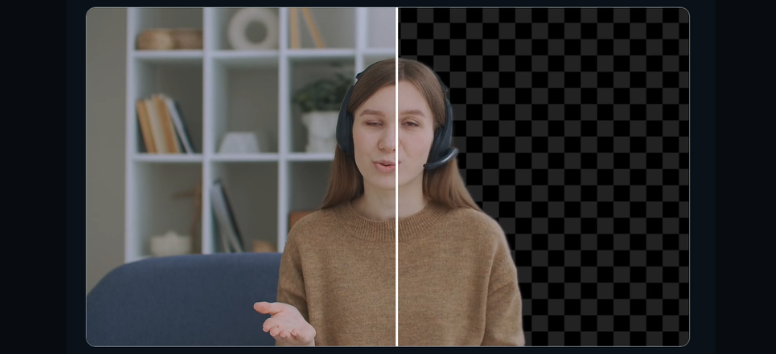
A cluttered background can pull attention away from your message. Camtasia’s AI video background remover keeps the focus where it should be by removing or softening what’s behind you, no special setup required. It works instantly, even on footage recorded in everyday spaces.
-
One-click removal - Clear or blur backgrounds without using a green screen
-
Flexible output - Export with transparent backgrounds or solid color fills
-
Wide format support - Works with common file types like MOV, PNG, and WEBM
Remove your video background in Camtasia and keep your visuals clean and focused every time.
Video Translation - Reach a Wider Audience Without Reworking Your Content
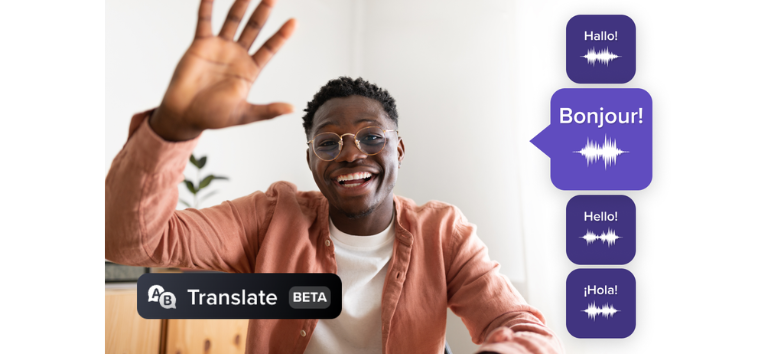
Creating content is one step. Making it understandable across languages is another challenge. Camtasia’s video translation feature simplifies that process by turning your existing videos into multilingual versions without starting over, keeping your message consistent across different audiences.
-
Simple workflow - Import your file, translate the script, and export in just a few steps
-
Accurate narration sync - Keep translated voice aligned with your video timing
-
Multiple outputs - Export subtitles, audio files, or full translated videos
Translate your videos in Camtasia and make your content accessible across different languages with less effort.
Add Music to Videos - Set the Right Tone Without Extra Tools
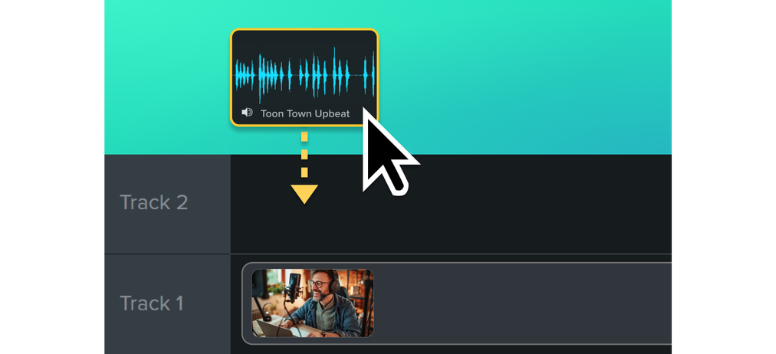
Music can shape how a video comes across, from setting the pace to reinforcing the message. Camtasia makes it easy to add background tracks directly inside the editor, so you don’t have to look for external sources or worry about usage rights while editing.
-
Royalty-free library - Access built-in music you can use without copyright concerns
-
Volume and fade controls - Adjust levels and blend audio smoothly with voiceovers
-
Search and preview - Find and test tracks without leaving the editor
Add music in Camtasia and give your videos a more polished and complete sound.
Video Cropping - Frame Your Content for Better Focus
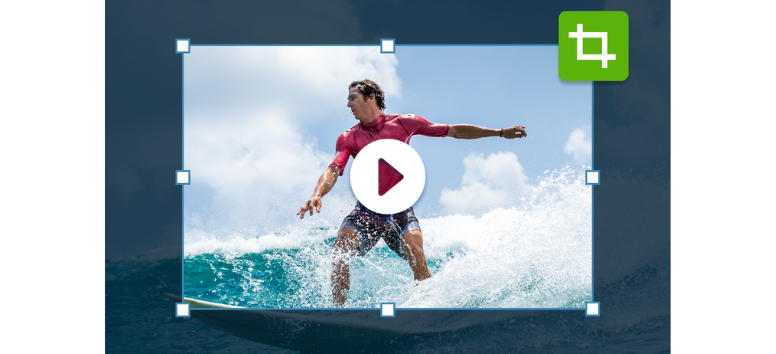
Not every part of a recording needs to stay on screen. Cropping helps you remove distractions, highlight key details, and reshape your video for different formats. Camtasia makes this process quick and precise, so your content stays clear and aligned with your message.
-
Focused framing - Zoom in on important areas or center your subject
-
Flexible formats - Adjust aspect ratios for vertical, square, or widescreen outputs
-
Quick editing tools - Resize and reposition clips without complex steps
Crop your videos in Camtasia and keep every frame focused on what matters most.
Custom Cursor Effects - Make Every Movement Easier to Follow 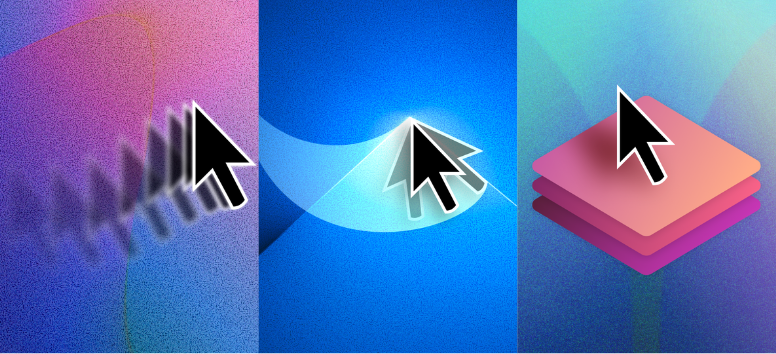
In tutorials and walkthroughs, the cursor often carries the story. Camtasia’s custom cursor effects make those movements clearer and more engaging, so viewers can follow along without getting distracted or lost on screen.
-
Motion blur effect - Smooth out cursor movement for a more natural flow
-
Kinetic cursor - Add realistic motion that follows momentum on screen
-
Cursor elevation - Keep your pointer visible above annotations and elements
Add cursor effects in Camtasia and guide your viewers through every step with more clarity.
Multitrack Screen Recording - Capture and Edit with Full Control
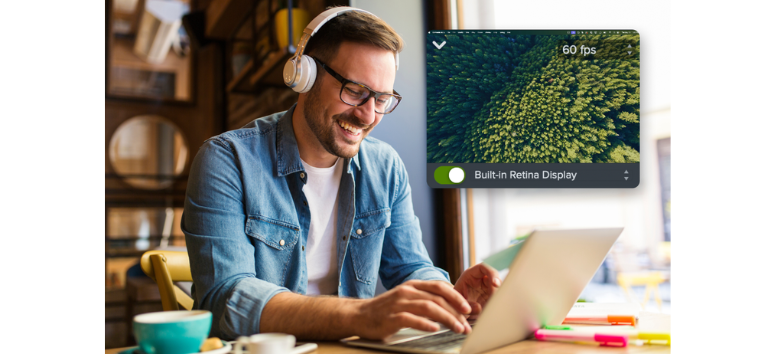
Recording is only part of the process. Editing flexibility is what shapes the final result. Camtasia’s multitrack screen recorder captures your screen, camera, and audio in high resolution, then gives you full control over each element during editing, so adjustments don’t require starting over.
-
4K screen capture - Record sharp, detailed visuals for professional output
-
Editable cursor data - Adjust cursor size, shape, and movement after recording
-
Separate tracks - Fine-tune audio, screen, and camera independently
Record with Camtasia and keep full control over every detail in your final video.
Video Speed Control - Adjust Pace Without Re-Editing Everything
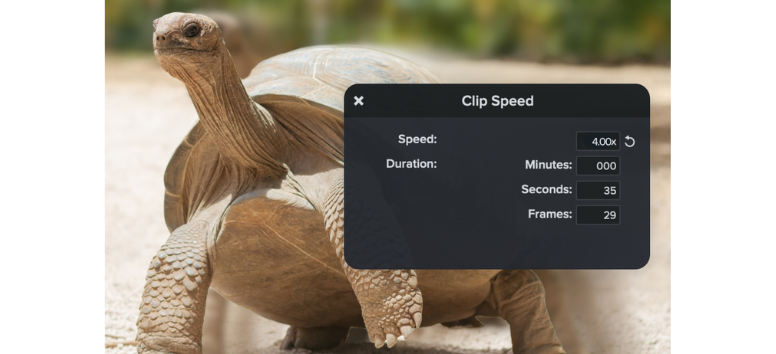
Not every part of a video needs the same pacing. Some sections drag, others move too quickly. Camtasia’s speed control tools let you adjust timing directly on the timeline, so your content stays engaging without re-recording or over-editing.
-
Drag-and-drop control - Adjust speed visually without guessing settings
-
Flexible pacing - Speed up slow sections or slow down key moments
-
Efficient editing - Focus on content first, refine timing later
Adjust your video speed in Camtasia and keep your content moving at the right pace from start to finish.
Video Compressor - Reduce File Size Without Losing Clarity
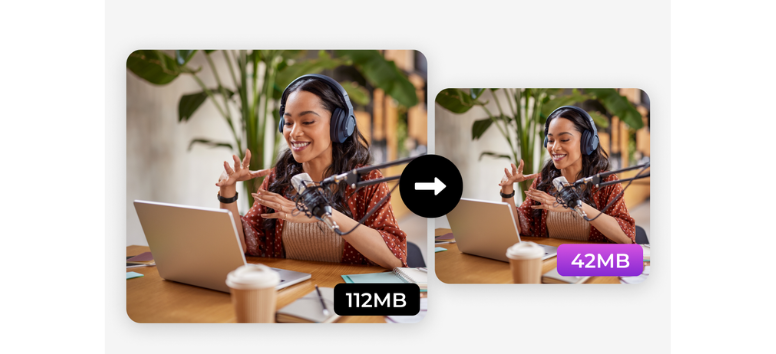
Large video files can slow down uploads, sharing, and storage. Camtasia’s built-in video compressor helps you reduce file size while keeping your visuals sharp, so your content stays easy to manage without sacrificing quality.
-
Fast compression - Use hardware-accelerated encoding to process videos quickly
-
Wide format support - Work with files like MP4, MOV, and GIF without extra tools
-
Batch exporting - Compress multiple videos in one go for faster workflows
Compress your videos in Camtasia and keep your files ready for sharing without the extra weight.
Beginner-Friendly Editing - One Tool That Covers Everything
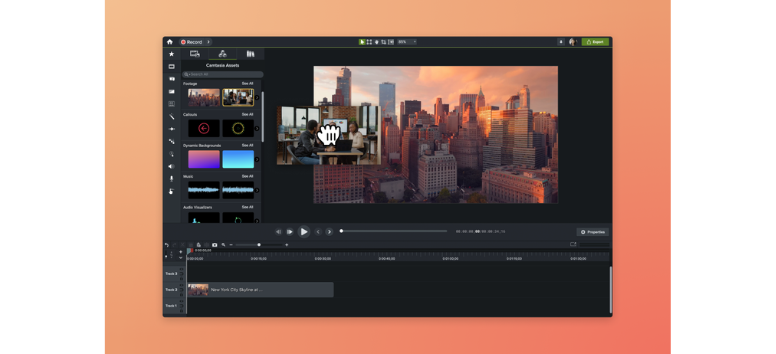
Video editing can get complicated fast, especially when tools feel overwhelming or disconnected. Camtasia keeps the process simple while still giving you the flexibility to create polished videos. It combines recording, editing, and built-in assets in one platform, so you don’t have to switch between tools or learn multiple systems.
-
Easy to use - Navigate a clean interface that works for beginners without slowing you down
-
Cross-platform support - Edit seamlessly on Windows or Mac using the same workflow
-
All-in-one setup - Record, edit, and export from a single workspace
-
Built-in assets - Use animations, backgrounds, and effects without sourcing externally
Create your videos in Camtasia and keep your entire workflow in one place from start to finish.
Video Templates - Faster Editing with Consistent Results
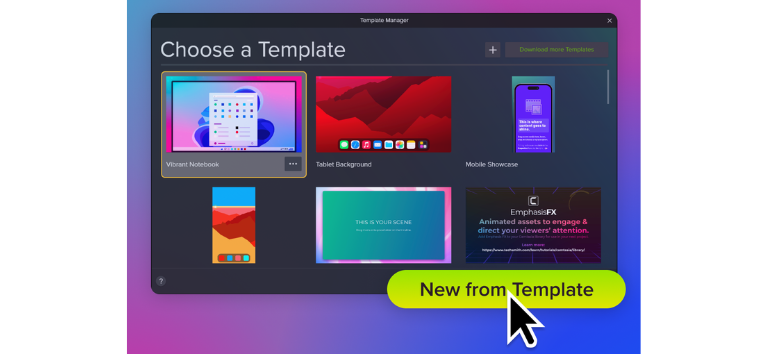
Creating videos from scratch every time can eat up hours. Camtasia’s video templates give you a ready-made structure, so you can focus on your content while keeping your visuals clean and consistent across every project.
-
Consistent branding - Keep layouts, colors, and structure uniform across all your videos
-
Faster production - Start with a ready-built template and skip repetitive setup work
-
Fully customizable - Adjust every element to match your style and project needs
Use Camtasia templates to speed up your workflow and keep every video aligned with your brand.
Snagit - Capture, Mark Up, and Share Without the Back-and-Forth
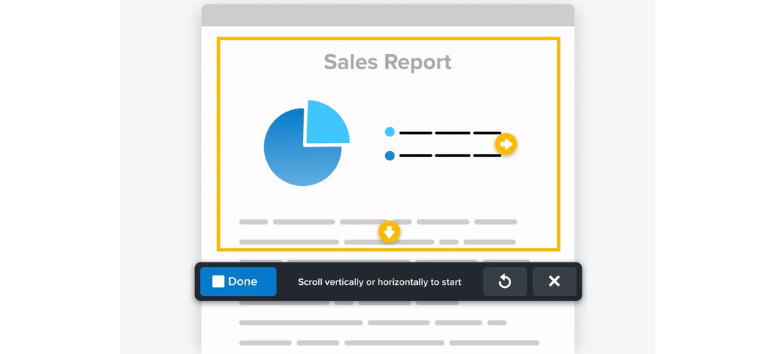
Work moves fast, and long explanations slow everything down. Snagit makes it easy to capture what’s on your screen, add clear annotations, and share instantly. With its tight integration with Camtasia, you can turn quick captures into polished videos without switching tools or breaking your workflow. Capture your screen with Snagit and turn everyday explanations into clear visual communication.
Background Remover - Clean Images Without Design Skills
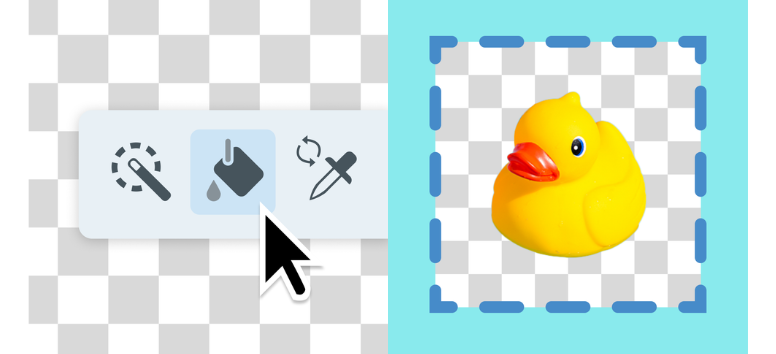
Editing images can take time, especially when backgrounds get in the way. Snagit’s background remover gives you a quick way to isolate subjects and create cleaner visuals for presentations, tutorials, or content.
-
Flexible tools - Use Magic Wand, Fill, or Color Replacer for precise edits
-
Beginner-friendly - Remove backgrounds in a few clicks without advanced skills
-
Custom output - Make backgrounds transparent or replace them with a new color
-
Professional results - Create polished visuals for slides, assets, or marketing use
Edit your images in Snagit and create clean visuals without relying on complex design tools.
Image Simplifier - Clean Visuals Without the Noise
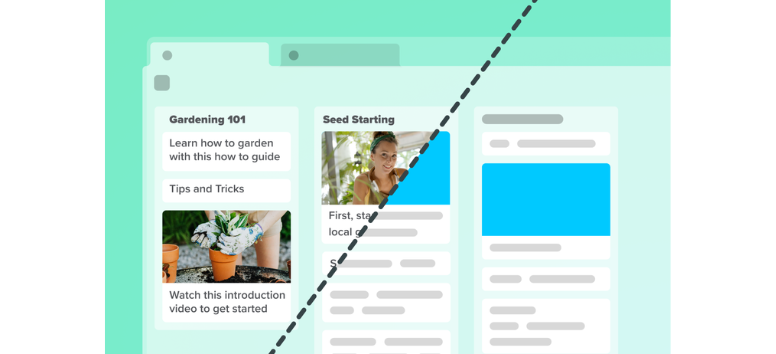
Screenshots can get cluttered fast, especially when they include sensitive details or too many elements. Snagit’s image simplifier helps you strip away distractions so your visuals stay clear, focused, and safe to share.
-
Auto simplify - Reduce visual clutter instantly, then fine-tune colors and elements as needed
-
Privacy control - Hide or remove sensitive data before sharing screenshots
-
Brand consistency - Match simplified visuals to your color palette for a unified look
-
Clear communication - Highlight only what matters so your message stays easy to follow
Simplify your visuals in Snagit and turn busy screenshots into clean, easy-to-understand content.
Smart Redact - Hide Sensitive Data in Seconds
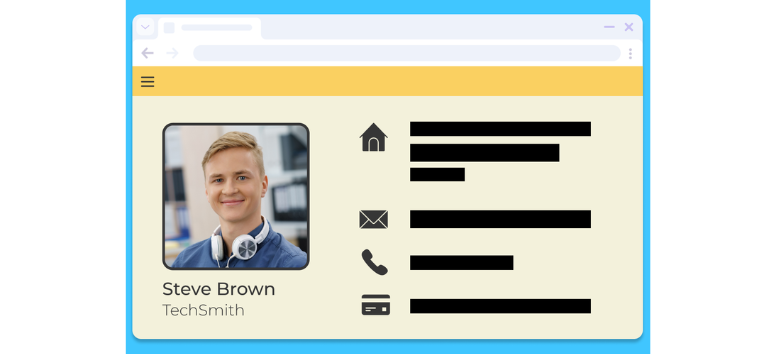
Sharing screenshots often comes with a risk, especially when private details are visible. Snagit’s Smart Redact feature helps you automatically detect and hide sensitive information, so you can share visuals without second-guessing what might be exposed.
-
Automatic detection - Instantly find and redact emails, phone numbers, and card details
-
Time-saving edits - Skip manual checking and clean screenshots in seconds
-
Privacy protection - Keep sensitive data hidden before sharing or publishing
-
Confident collaboration - Send visuals without worrying about accidental exposure
Redact your screenshots in Snagit and share information safely without slowing down your workflow.
Step Capture - Turn Clicks Into Clear Step-by-Step Guides
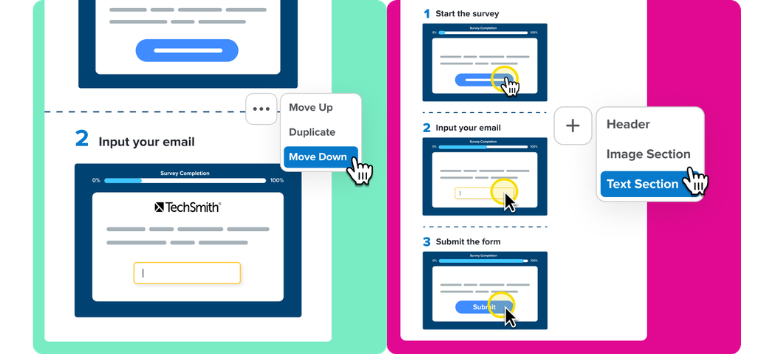
Explaining a process can get messy fast, especially when steps are missed or out of order. Snagit’s Step Capture records your clicks as you go, then turns them into a clean, structured sequence that’s ready to share.
-
Automatic sequencing - Capture each step and organize them in the correct order instantly
-
Faster workflow - Skip manual sorting and get a ready-made step guide in seconds
-
Custom annotations - Add arrows, text, and styling to match your brand or instructions
-
Clear documentation - Turn actions into easy-to-follow visuals for tutorials and demos
Capture your process in Snagit and turn simple clicks into clear, step-by-step instructions.
Add Text to Image - Turn Screenshots Into Clear Visuals
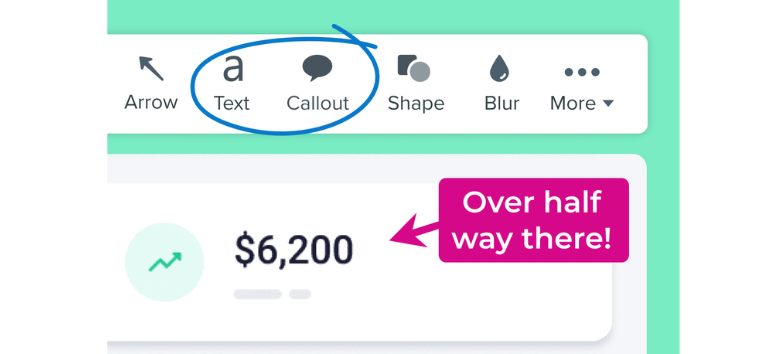
A plain screenshot can miss the point without context. Snagit makes it easy to add clear, readable text so your visuals explain themselves, whether you’re creating guides, presentations, or quick instructions.
-
Easy text tools - Add and customize text or callouts without a steep learning curve
-
Polished visuals - Use clean fonts, colors, and styles for a professional look
-
Flexible design - Match text elements to your brand or project tone
-
Better clarity - Highlight key details so your audience understands faster
Add text in Snagit and turn simple images into visuals that communicate instantly.
Blur Image Tool - Hide Details Without Slowing Down
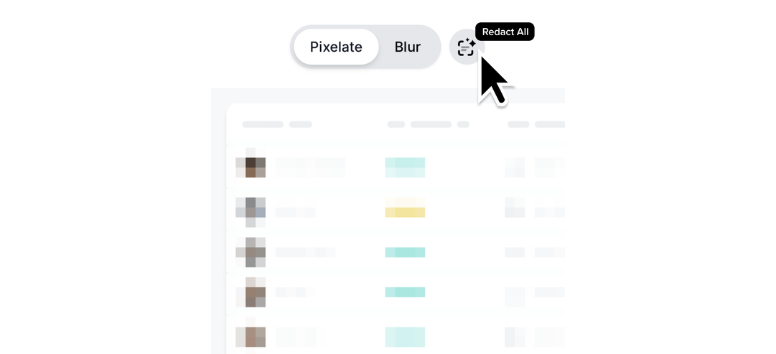
Some images aren’t ready to share as-is, especially when they include private or sensitive details. Snagit’s blur tool lets you quickly obscure text or visuals, so you can keep your content usable while protecting what shouldn’t be seen.
-
One-click blur - Instantly hide text or graphics without manual selection
-
Redact all option - Blur all visible text at once for faster editing
-
Flexible coverage - Apply blur to specific areas or the entire image
-
Safe sharing - Keep key visuals visible while blocking private details
Blur your images in Snagit and share confidently without exposing sensitive information.
Crop Image Tool - Edit Freely Without Losing Your Original
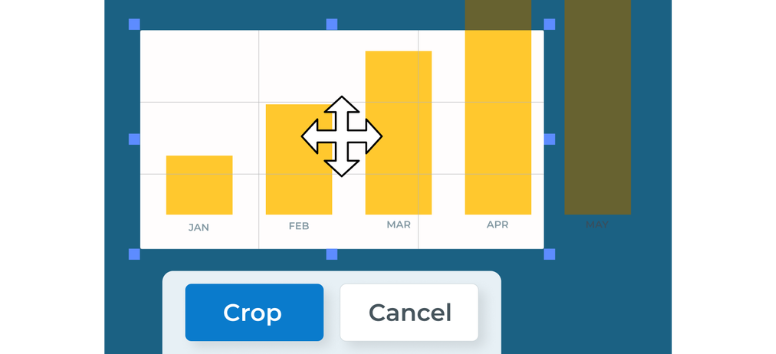
Cropping sounds simple, yet it often comes with one risk: losing parts of your image for good. Snagit lets you crop, adjust, and even restore your original anytime, so you can refine visuals without second-guessing.
-
Reversible edits - Restore cropped sections anytime with editable file support
-
Quick trimming - Remove borders and unwanted edges in just a few clicks
-
Cut Out tool - Delete sections from the middle while keeping layout intact
-
Focused visuals - Highlight only what matters for clearer communication
Crop your images in Snagit and refine your visuals without losing flexibility.
Delayed Screenshot - Capture the Right Moment Every Time
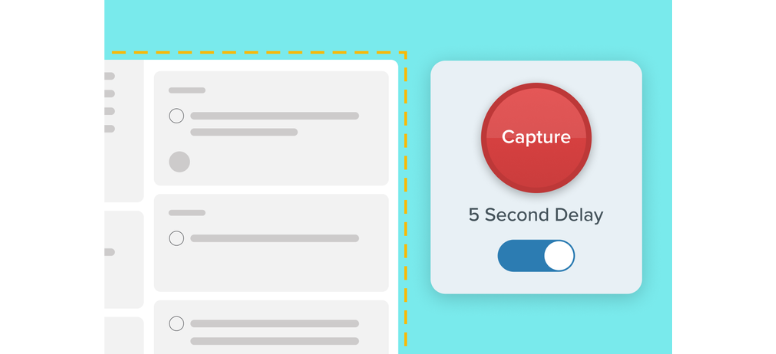
Some screens don’t stay still long enough for a quick capture. Snagit’s delayed screenshot feature gives you control over timing, so you can grab menus, transitions, or auto-changing content without rushing.
-
Flexible delays - Set custom timers and reuse them for repeated tasks
-
Scheduled captures - Automate screenshots at specific times or intervals
-
Continuous capture - Record changes over time for tracking or documentation
-
Perfect timing - Capture dynamic elements like menus and transitions with ease
Capture your screen with Snagit at the exact moment you need, without missing key details.
Quick-Share Screen Recorder - Record, Highlight, and Send in Seconds
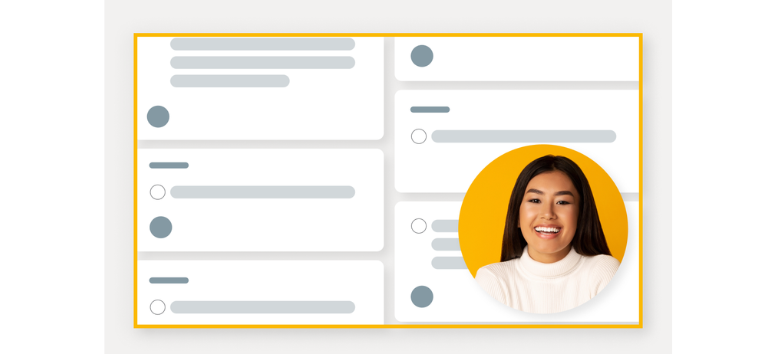
Explaining something over chat can drag on, especially when visuals would make it clearer. Snagit’s quick-share screen recorder lets you capture your screen, draw as you record, and send it instantly, so your message lands the first time.
-
Real-time drawing - Add arrows, shapes, and step markers while recording
-
Instant sharing - Send videos via link or directly to your go-to apps
-
All-in-one capture - Record video or grab screenshots from the same tool
-
Clear communication - Show exactly what matters without long explanations
Record your screen with Snagit and share your message faster, clearer, and without the back-and-forth.
Remove Text from Image - Clean Edits Without the Trace
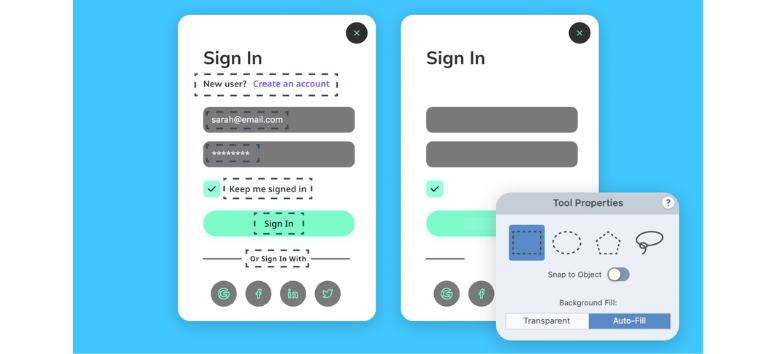
Old labels, sensitive details, or unwanted text can clutter an image fast. Snagit makes it easy to remove text cleanly, so your visuals stay sharp, updated, and ready to share without distracting elements.
-
Precise selection - Target text accurately using flexible selection tools, including freehand
-
Auto-fill edits - Replace removed areas with matching colors or patterns for a seamless look
-
Clean visuals - Remove outdated or unnecessary text without affecting the rest of the image
-
Privacy protection - Eliminate sensitive details before sharing or publishing
Edit your images in Snagit and remove text cleanly, leaving no trace.
Scrolling Screenshot - Capture Full Pages Without Stitching
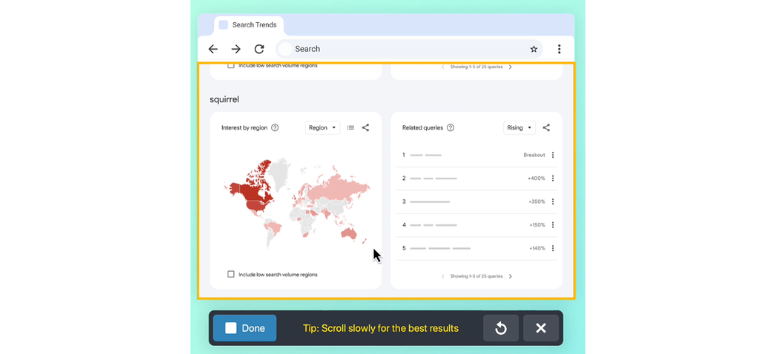
Capturing long pages or wide content can get messy fast when you rely on multiple screenshots. Snagit’s scrolling capture lets you grab everything in one go, so your visuals stay complete and easy to understand.
-
Vertical capture - Screenshot full web pages from top to bottom in one take
-
Horizontal capture - Capture wide content like spreadsheets without cutting sections
-
No stitching needed - Avoid manual edits by capturing everything at once
-
Built-in editing - Add annotations, callouts, and highlights right after capture
Capture full pages in Snagit and keep your screenshots complete, clean, and ready to share.
Speech Bubble Tool - Make Your Visuals Speak Clearly
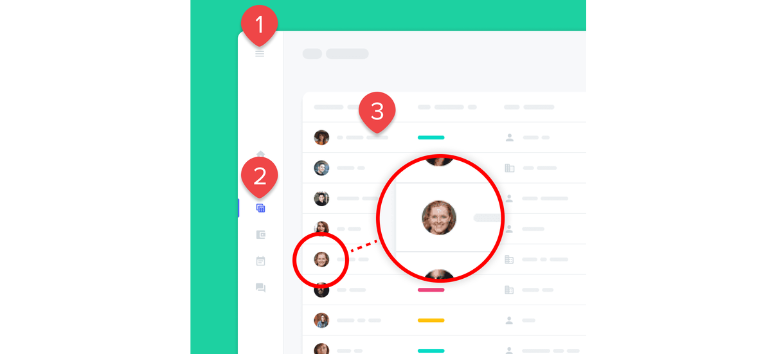
Sometimes a simple image isn’t enough to explain what’s going on. Snagit’s speech bubble and callout tools let you add context right where it matters, so your visuals become easier to follow at a glance.
-
Wide design options - Choose from callouts, arrows, and shapes, then customize them to fit your style
-
Highlight key details - Use magnify and step tools to guide attention and improve clarity
-
Reusable styles - Save your favorite callouts as QuickStyles for consistent visuals
-
Stronger communication - Add context directly on images to reduce confusion
Add speech bubbles in Snagit and turn your visuals into clear, guided explanations.
Video to GIF - Turn Clips Into Shareable Moments
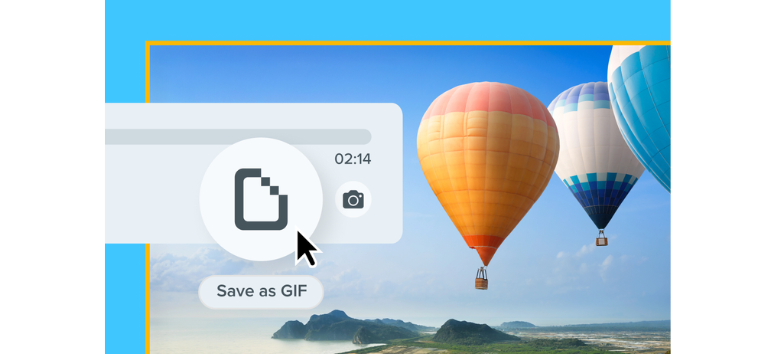
Sometimes a full video is too much when a short loop says it better. Snagit makes it easy to convert clips into GIFs, so you can share quick demos, reactions, or walkthroughs that grab attention fast.
-
Combine clips - Merge multiple videos into one seamless GIF
-
Precise trimming - Cut down to the exact moment that matters
-
Optimized export - Keep quality high while staying share-friendly
-
Quick sharing - Use GIFs for tutorials, messages, or social content
Convert your videos in Snagit and create GIFs that are easy to share and hard to miss.
Screen recording has shifted from a “nice to have” into a daily tool for how people teach, sell, explain, and create. From quick walkthroughs to full-scale video production, the right software can cut hours of work and make your message land faster. That’s where tools like Camtasia and Snagit come into play, giving you different ways to capture, edit, and share without overcomplicating the process.
If your focus leans toward polished videos, tutorials, or content creation, Camtasia gives you the depth to build something refined. If speed, clarity, and everyday communication matter more, Snagit keeps things quick and visual without slowing you down. In many workflows, they even work better side by side.
Pick the tool that fits how you actually work, not just what looks powerful on paper. Start creating, start sharing, and let your screen do the explaining.